There are two ways to cancel an event in VenuePilot: cancelling from the hold page, and cancelling from the event page.
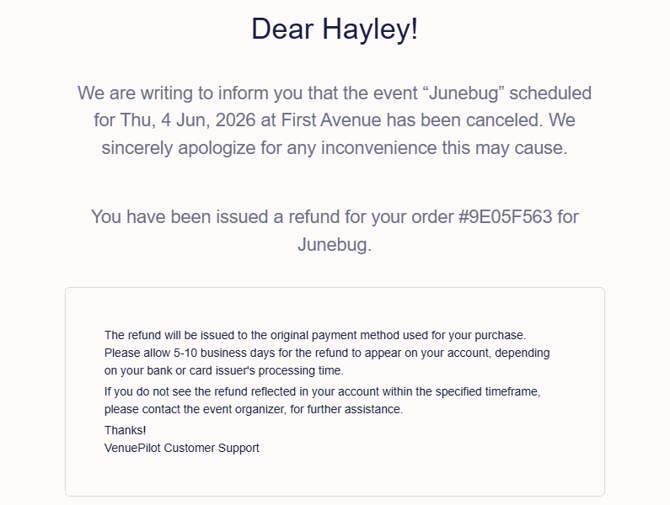
NOTE: VenuePilot automatically notifies customers of refunds or cancellations but not the details surrounding the event cancellation.
It is recommended to contact purchasers about an event being canceled, prior to executing the cancellation, providing details around the event specifics and the process, via Download Will Call Report for using a third party email solution or via the VenuePilot mailer by Sending an Email to Ticket Buyers.
Option 1: Cancel from the Hold Page
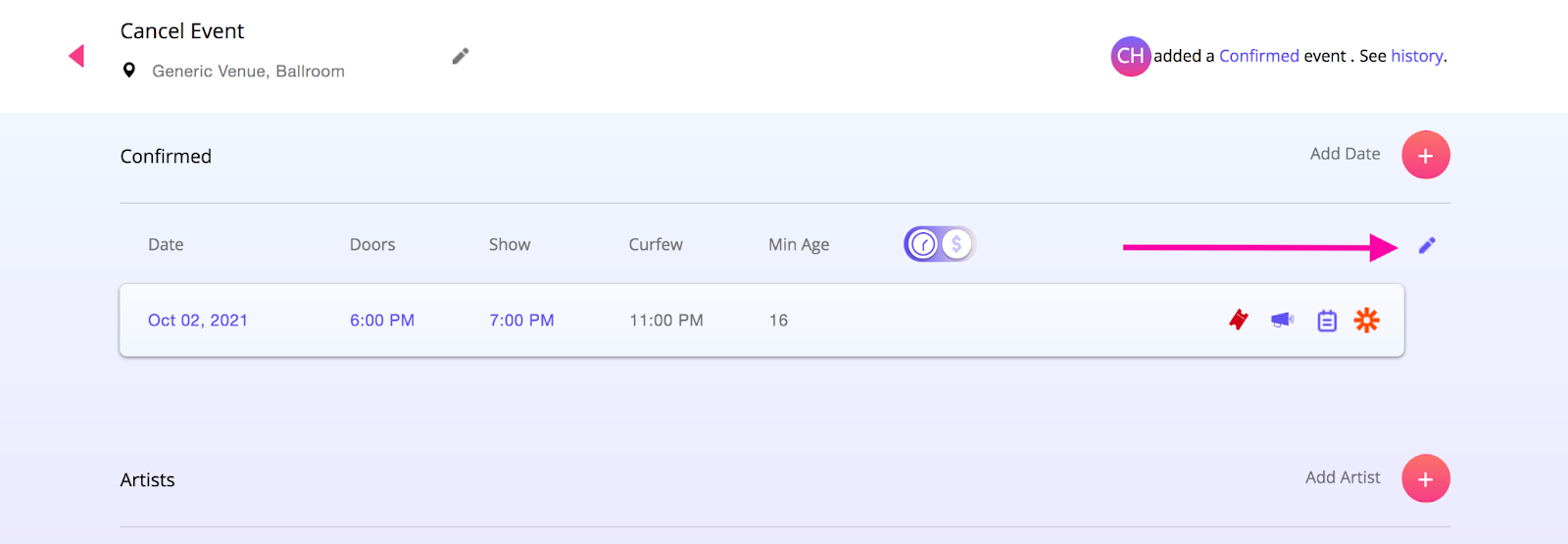
Step 1: From the calendar, click into the event you wish to cancel. From here, click on the pencil to the right of the event. A trash can will appear in the event window.
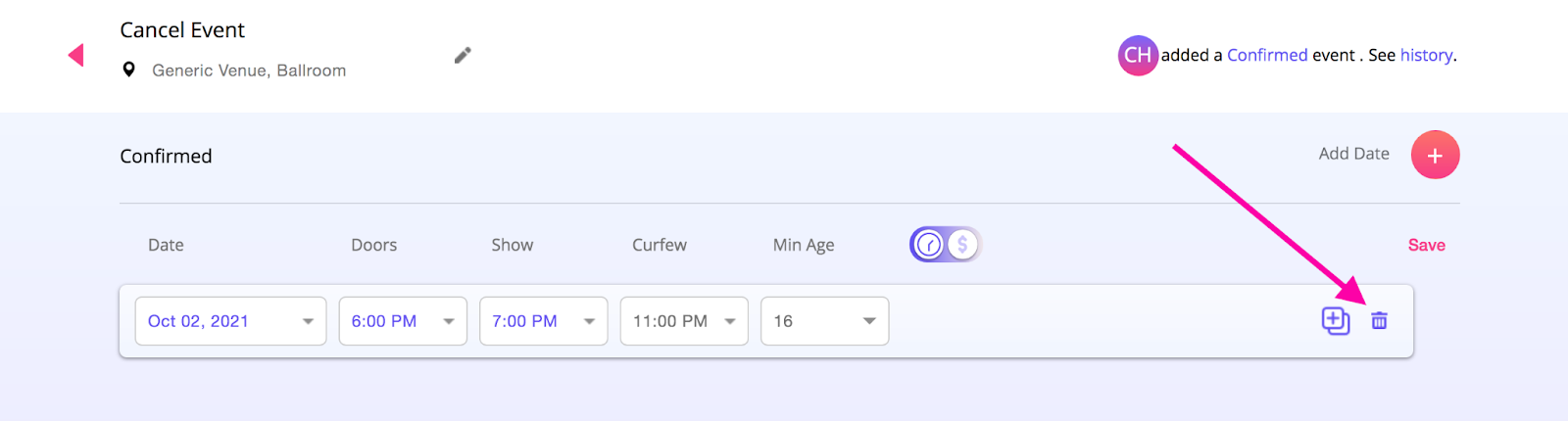
Step 2: Click on this trash can. If tickets for the event haven’t been listed for sale yet, you can choose to either cancel all other holds for the date, or only selected holds. Confirm your selection by clicking “ok.” This event will now be cancelled.
Step 3: If the event was confirmed, you will see this pop up.
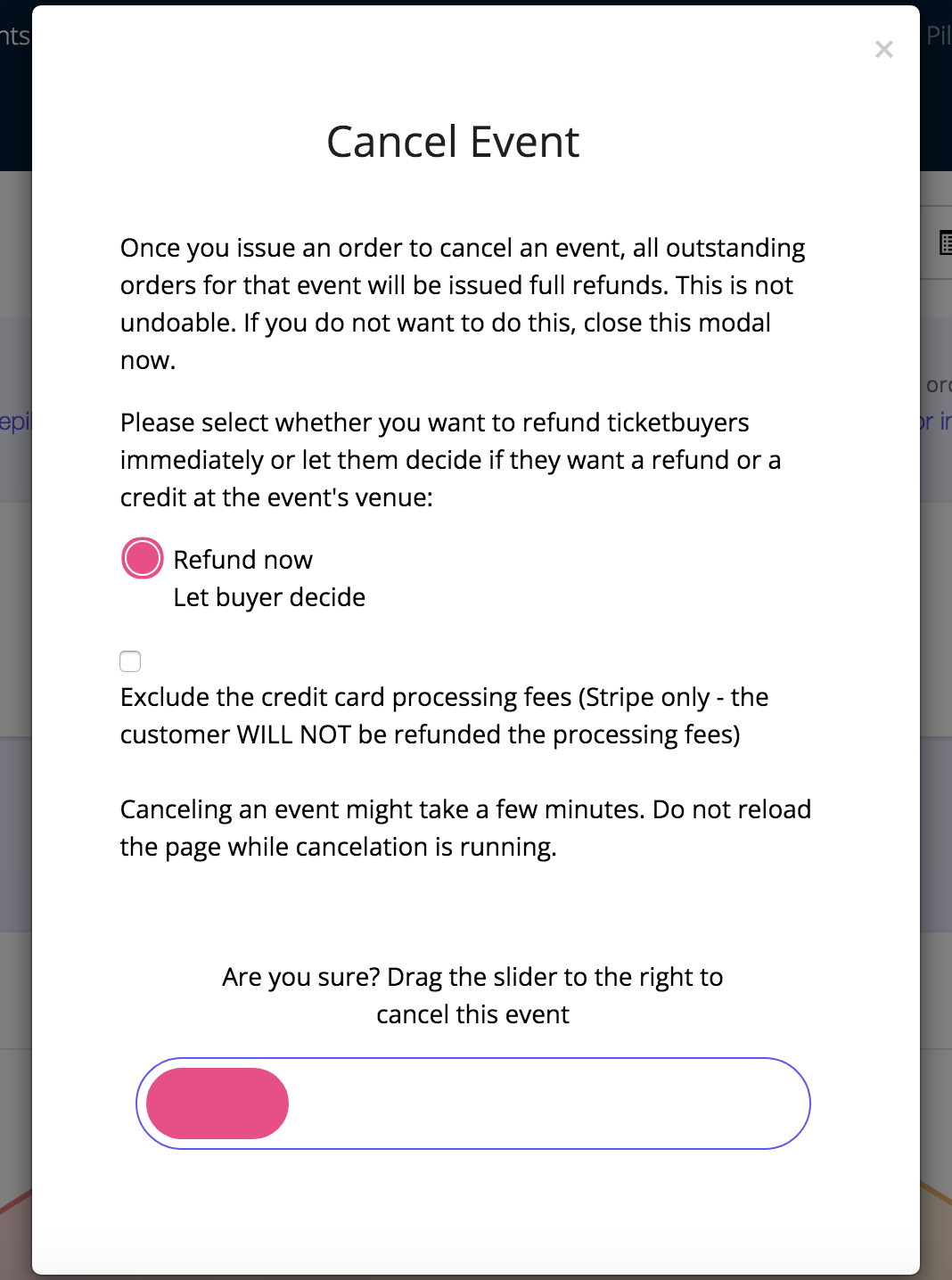
You can choose to refund the purchases now, or let the buyer decide if they want a refund or credit at the venue.
Note: If you choose to “Let Buyer Decide” customers will be sent instructions on how to manage their options via https://my.venuepilot.co -- they have the option to choose 'refund', take a 'credit' or 'donate' their payment to your venue
Note: Customers will be notified of a cancellation once executed, via an "Important update regarding your tickets for..." email. Prior to canceling, download the Will Call report to provide additional context or information to your guests or send the email directly from the VenuePilot will call page.
Did you forget to email your customers before cancelling the event? Use the event cancellation report to retrieve their emails after cancellation’
You can also choose to exclude credit card processing fees in the refund, which you will see reflected in your credit card processor.
Once you select how customers can access refunds, move the slider all the way to the right. The event will be officially cancelled, and removed from your calendar and upcoming events page.
Option 2: Cancelling from the Ticket Page
You can also cancel an event from the ticket page. To do this, navigate into the ticket page and click “Cancel” at the top of the page. From here, follow Step 3 shown above.

Cancelled Event Report:
Cancelled events often contain information you might want to access in the future. After an event is cancelled, you can still pull a report on the event that includes ticket buyers, and email addresses. In order to access this report filter the calendar by cancelled events, click into the canceled report from the "hold" view, and select "cancellation report."
Don’t see a pencil or cancel button? See how to turn on these permissions.
Recommended Cancellation Email
Since VenuePilot has multiple options to refund a customer, we recommend using the following template to notify ticket buyers of an event cancellation:
We regret to inform you that [Event Name at Venue], which you had purchased tickets for, has been canceled due to unforeseen circumstances. We sincerely apologize for any inconvenience this may cause and want to ensure you are well-informed about the next steps. Head to my.venuepilot.co, where you can receive a refund, credit towards the venue, or make a donation.