
Create a Settlement Sheet
- Click into the event to navigate to the event page
- Scroll down to the Artist Modal and click on the "Settlement" button next to the relevant artist
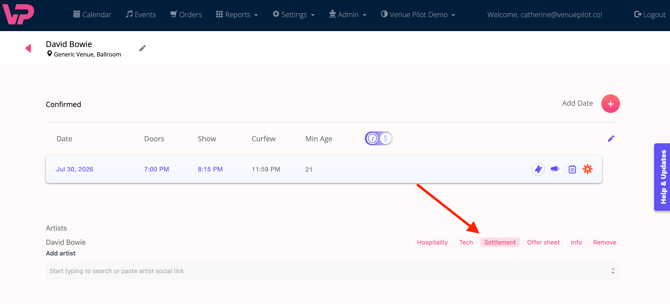
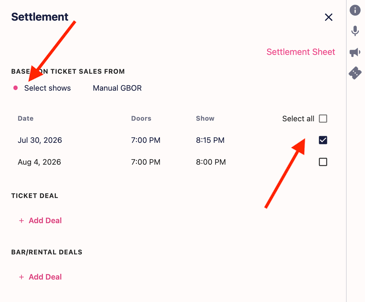
- Once inside the Settlement Tool you can select the show you would like to settle, and VenuePilot will automatically pull in your ticket sales
- You can also manually input the GBOR (gross box office receipts) information
- Have a show repeated across multiple days? You can settle day by day, or combine multiple events into one settlement sheet
To pull in ticket sales automatically, toggle to "Select shows" and check off either individual events, or "Select all":
To manually input ticket sales, toggle to "Manual GBOR" and enter each ticket type with the name, amount sold, and price of each ticket: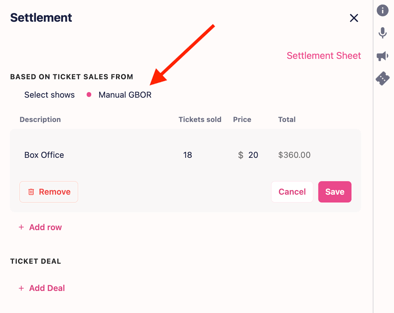
Deal Structure
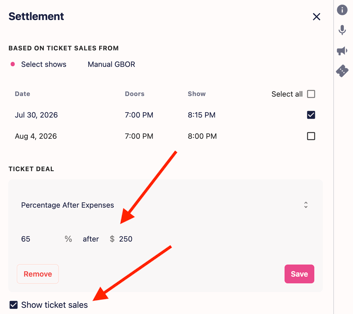
Ticket Deal
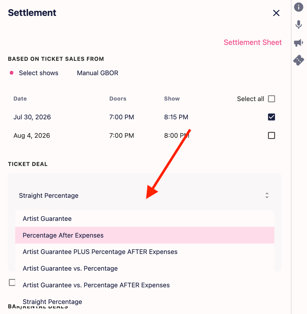
- Now it's time to choose a structure for the deal. VenuePilot offers 6 standard deal options to choose from. Read about each of our deal options and what they mean here
- Navigate to the "Ticket Deal" section and click on the drop-down menu
- Input the deal details and click on "Save"
- Check off "Show ticket sales" for the number of each ticket type sold to show in the settlement sheet. If you only want the total gross amount shown, leave this box blank
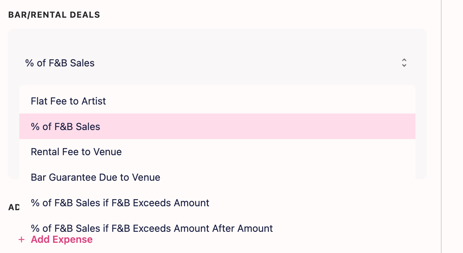
Bar/Rental Deals
- Choose a bar/rental deal if applicable. Data will be pulled from the F&B section of the budget sheet
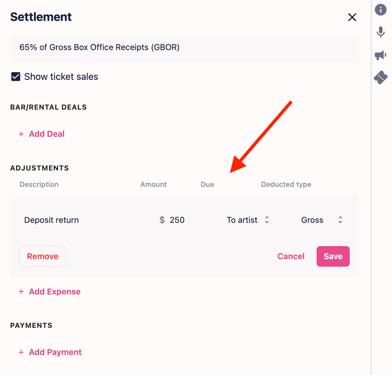
Adjustments
- Add any miscellaneous expenses, payments or charges under "Adjustments":
- Anything added here WILL be calculated in the total shown in the settlement sheet
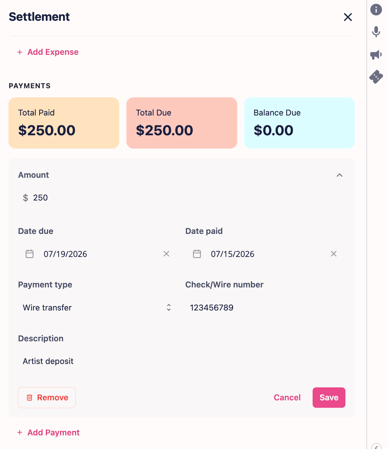
Payments
-
Add any existing payments under the "Payments" section:
- Anything added here WILL NOT be calculated in the total shown in the settlement sheet; this is for record keep purposes only
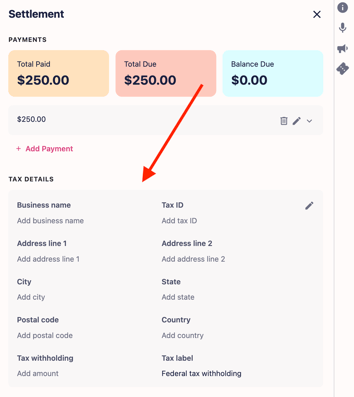
Tax Details
- Once you have structured your deal, you can add all the tax information at the bottom of the modal
Downloading the Settlement Sheet
Once all of your info is filled out, you can download the settlement sheet by clicking on the pink "Settlement Sheet" button in the top right corner of the modal: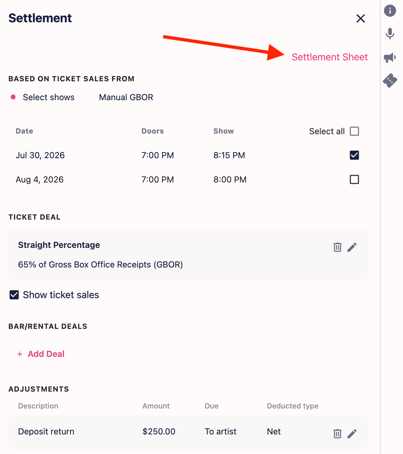
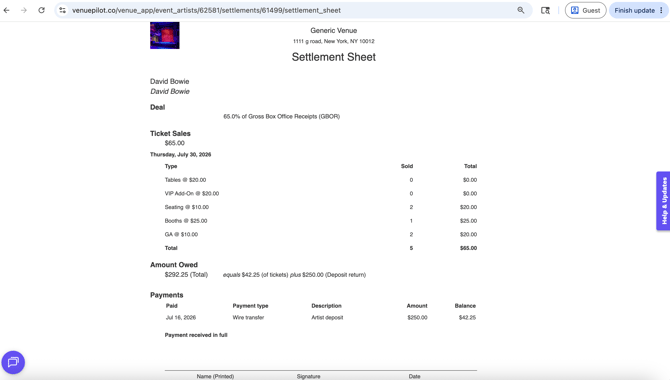
Opens the settlement sheet in your browser:
Closing out a show? Click here to learn more about our Closeout Report.
🆘Still need help? Reach out to us clientsupport@venuepilot.co