
👀Please Note!👀
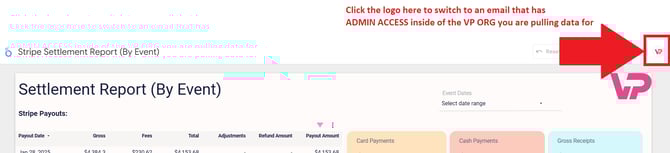
- To view Looker Studio reports, please make sure you are viewing with an email that has Admin Access to your VenuePilot ORG. You can see/change the email viewing this data in the upper right-hand corner of the report (screenshot below)!
- Having trouble viewing your data? Check that you aren’t attempting to access the reports from a separate Google account, for example, your personal email.
- In the upper right-hand corner of the report, click the CIRCLE ICON containing your Chrome Profile Photo. Here you can switch to any email that has ADMIN ACCESS inside the VenuePilot ORG you are pulling data for.
- You can also use a Guest Chrome Profile to share this data with your team
- To create a guest profile in Google Chrome, you can:
- Open Chrome
- Click your profile picture in the top right corner
- Click Guest under Other profiles
- A new window will open, indicating that you're in Guest Mode
- When you're done using the web, close the "Guest mode" browsing window
- To create a guest profile in Google Chrome, you can:
👀Please Note!👀
- To view Advanced Reports, please make sure you are viewing with an email that has admin access to your VenuePilot account.
- Having trouble viewing your data? Check that you aren’t attempting to access the reports from a separate Google account, for example, your personal email.
Health Reports
- P&L Flash Report
- An overview of how yesterday performed, including total checked-in vs. total sold numbers for your event!
- Pull in details from your Budgets and Settlement Sheets including Merch cut, concessions, and space rental fees 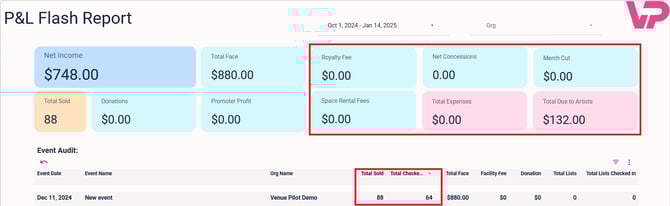
Customer Analysis Reports
- Buyer Locale
- Learn more in-depth details about the location of your ticket buyers - Ticket Manifest
- A detailed look at every transaction to your event(s), with each transaction as a line item - Top Fans
- Learn who your accounts' most loyal fans are based on number of tickets bought, total sale revenue & donations
Accounting Reports
- Settlement Report (By Event)
- Look at in-depth event settlement reporting, including donation amounts, this is most commonly used by accounting staff to examine deposits at the event level - Stripe Payout Reconciliation Reports
- Look at in-depth settlement reporting BY ORDER or BY EVENT
- See the fees and taxes on an event by event basis
These reports will also help you reconcile your payouts in Stripe!
- In your Stripe account, navigate to your Payouts by clicking on the left-hand Transactions from the menu
- Next, click the Payouts tab on the right-hand side:

- Your stripe account should list each payout to your bank, which you can then match to your LookerStudios reporting
- With your payout date selected in Stripe, scroll through the dates under "Stripe Payouts:" in your Settlement Report (By Event)
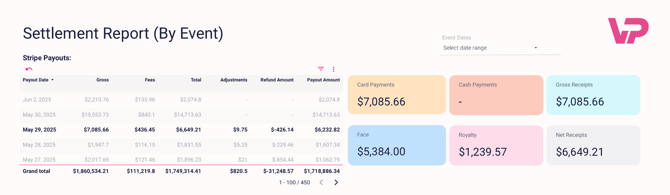
- As you scroll down under Events, you will see the shows, tickets, and individual transactions that make up your total stripe payout
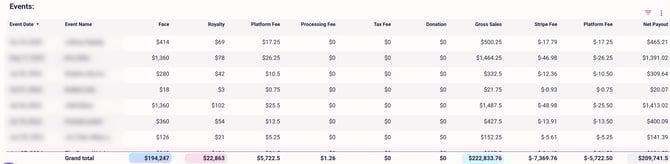
* Gross= The Sum total amount of the orders paid by the ticket buyer
* Fees= Total fees deducted (both VenuePilot fees and Stripe fees)
* Total= Total payout minus fees
* Refunds= Total amount you refunded
* Adjustments= There are VenuePilot’s returned fees to you on refunds. If you fully refund a ticket buyer we also will refund the associated fees to you 🙂!
PRO Reports
- ASCAP Blanket Concert and Recital Report (BCON)
- Looks almost exactly like ASCAPs template report. Use this to save time preparing reports to submit to ASCAP.
- Type in your account number
- Type in your “Premise Name” (it must match exactly the “Premise Name” in the table- It’s case sensitive)
- Select your date range
- Looks almost exactly like ASCAPs template report. Use this to save time preparing reports to submit to ASCAP.
-
This report contains a list of canceled events with all relevant to the cancelation information allowing you to have a quick glance at all events at once, and see the status of refunds/credits for when you let the buyer decide.
Email Opt-In Report
- This report automatically downloads to your default downloads folder on your computer when clicked. It contains First Name, Last Name and the email of all of your prior ticket buyers across all events as well as a True (opted-in) of False (opted-out) status that they chose during the checkout;
- This report contains the main customer info such as the order #, full name and discounts and donations that were applied.
-
This report includes a list of events with an overview of each event and the data for the number of tickets sold, including their total face value. It also includes the data for the total of the tickets refunded in both ticket quantity and dollar amount.You can also see how many tickets were scanned in at that event.
- This report is designed to give you an idea of sell through for your events, and understand the value of your unsold inventory
- This report gives you a glance at the list of the total donations / month as well as the breakdown of each donation per donor including their name and order #.
-
This report provides the data for the amount of tickets sold / month with the list of months to choose from for a per show breakdown;
🆘Still need help? Reach out to us @ clientsupport@venuepilot.co