
What are Venue Defaults?
Venue Defaults allow you to pre-set specific details for a venue that will auto-populate as soon as you select a date during a new event build. Currently, you can automate:
- Standard Timing: Default Door, Show, and End times.
- Entry Requirements: Age limits and high-level event settings.
- Messaging: Footer text and custom Confirmation Email text.
Important Note: These settings will apply to your Rooms; however, please note that only one set of defaults is supported per venue at this time.
How to Set Up Your Defaults
Follow these steps to configure your standard settings:
- Navigate to Settings in the main navigation bar.
- Select Venues from the dropdown menu.
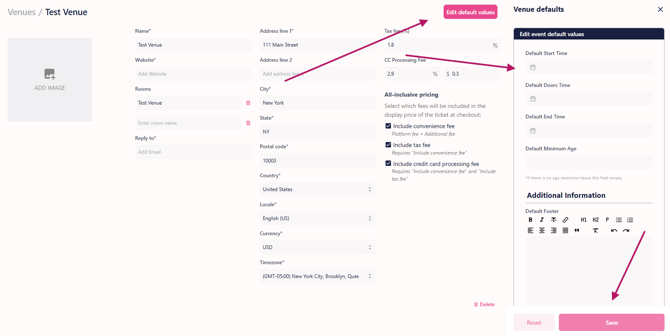
- Locate the venue you wish to edit and click Edit Venue Defaults.
- Fill in your standard details:
- Enter your go-to Door, Show, and End times.
- Add your standard Footer and Confirmation Email text.
- Set your default event ticket limits (a limit on how many tickets a customer can purchase per event) and age limits.
- Select any relevant checkboxes for high-level event settings.
- Click Save.
Using Defaults in a New Event Build
Once your defaults are saved, putting them to work is seamless:
- Step 1: Start a new event build as usual.
- Step 2: Select the Venue for the event.
- Step 3: Select a Date.
As soon as you pick the date, all your venue defaults (timing, messaging, and other settings) will automatically appear in the event fields. You can still adjust any field for a specific show, but the bulk of the setup is already handled.
Pro-Tip for Consistency
Using Venue Defaults is the best way to ensure your Terms & Conditions and Confirmation Emails stay professional and uniform across all your standard bookings; reducing the risk of typos or forgotten info during a busy on-sale period.
