---
title: Managing Delayed Delivery for Your Event
description: Delayed delivery of PDF tickets for event
---
[Skip to content](https://support.venuepilot.co/knowledge/managing-delayed-delivery-for-your-event#main-content)
English
Show submenu for translations

Open main navigation
Close main navigation
- English
Show submenu for translations
- Contact us
Contact us
Search our Knowledge Base
- There are no suggestions because the search field is empty.
1. [VenuePilot Support](https://support.venuepilot.co/knowledge?hsLang=en)
2. [Manage Events](https://support.venuepilot.co/knowledge/manage-events?hsLang=en)
3. [Email Confirmations](https://support.venuepilot.co/knowledge/manage-events?hsLang=en#email-confirmations)
# Managing Delayed Delivery for Your Event
### **What is a Delayed Ticket Delivery?**
Delayed delivery is a strategic feature used during the event creation process that temporarily disables the generation of PDF tickets.
Delayed delivery allows customers to successfully purchase tickets and receive their email order confirmation, but their actual scannable PDF tickets will not be issued until a predetermined date closer to the event.
### **Why Use Delayed Delivery?**
Implementing a delivery delay is a highly effective tool for organizers to maintain control over their ticketing ecosystem. It is most commonly used to:
- **Comply with Artist Requests**: Many artists and performers specifically request delivery delays to ensure their fans get fair access to tickets.
- **Manage High-Demand Events**: For major onsale events, delaying delivery gives your team time to review orders for fraudulent activity.
- **Deter Ticket Scalpers & Inflated Reselling**: Because customers do not immediately receive a PDF asset, it is virtually impossible for resellers to upload or distribute tickets on secondary marketplaces early in the sales cycle.
### ⚙️ **How to Set Up Delayed Delivery**
You can activate delayed delivery either while creating a brand new event or by editing an existing one.
**Step 1**: Disabling PDF tickets at checkout
- Navigate to the event
- If creating a new event, open the [**Add Event**](https://support.venuepilot.co/knowledge/from-hold-to-tickets-sold?hsLang=en) modal
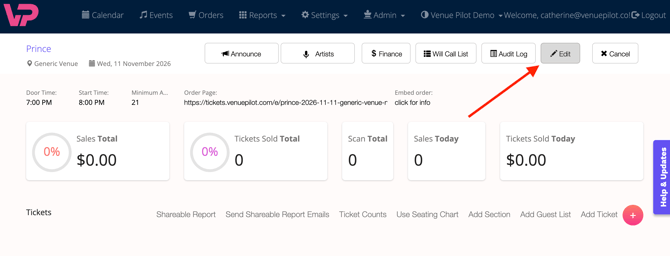
- If updating an existing event, find your event on the dashboard and click **Edit
**
- **Locate ticket settings:** Scroll down to the bottom of the event configuration page
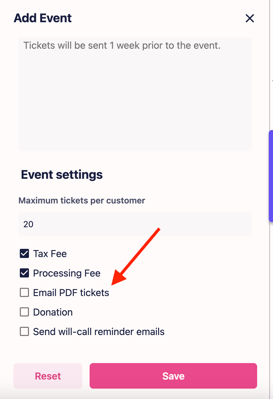
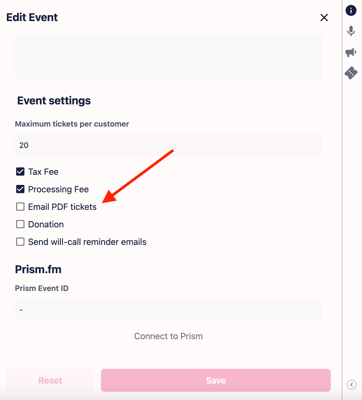
- **Disable PDF Tickets:** Find the "Email PDF tickets" checkbox and uncheck it to disable immediate ticket generation
**In the modal when adding a new event:**
**In the modal when editing an event:**
- **Save your changes:** Click "Save" to apply the settings
⚠️ **Customer Support Tip:** When Delayed Delivery is active, reassure inquiring customers that their orders are confirmed. Inform them that their PDF tickets are securely held and will be released closer to the show.
**Step 2**: Releasing and Emailing the PDF Tickets
- When the predetermined date and time arrives to release the tickets to your attendees, you will use the system's [email tool](https://support.venuepilot.co/knowledge/send-an-email-to-your-ticket-buyers?hsLang=en) to distribute them
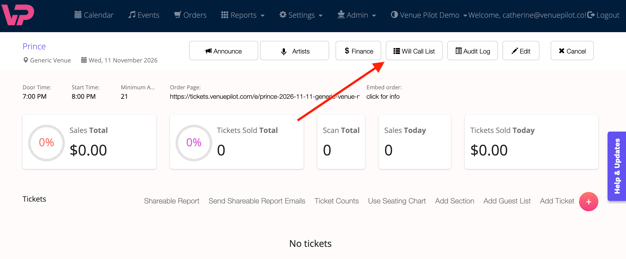
- Navigate to the **Will Call List** section of the event
- Click on the **Email Attendees** button
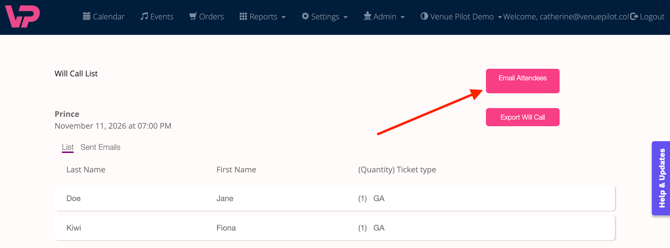
- Draft your email message to the attendees (e.g., "Your tickets for tonight's show are attached!")
- Check the box labeled "Include PDF Tickets"
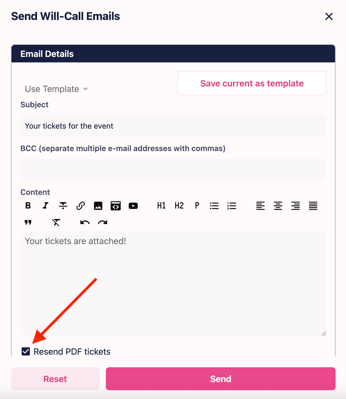
- Send the email
Your customers will receive the email with their official PDF tickets attached. Learn more about how to use our will call email feature [here](https://support.venuepilot.co/knowledge/send-an-email-to-your-ticket-buyers?hsLang=en).
**💡 Pro-Tip:** Save your email as a template to standardize your language and save time. Learn more about email templates [here](https://support.venuepilot.co/knowledge/send-an-email-to-your-ticket-buyers?hsLang=en).
Questions? Contact us in the chat or email us at clientsupport@venuepilot.com.
- [Ticket Buyers](https://support.venuepilot.co/knowledge/ticket-buyers?hsLang=en)
- [Get Started with VenuePilot](https://support.venuepilot.co/knowledge/get-started-with-venuepilot?hsLang=en#main-content)
- [Onboarding](https://support.venuepilot.co/knowledge/get-started-with-venuepilot?hsLang=en#onboarding)
- [Calendar](https://support.venuepilot.co/knowledge/calendar?hsLang=en)
- [Manage Events](https://support.venuepilot.co/knowledge/manage-events?hsLang=en#main-content)
- [Email Confirmations](https://support.venuepilot.co/knowledge/manage-events?hsLang=en#email-confirmations)
- [Access & Discount Codes](https://support.venuepilot.co/knowledge/manage-events?hsLang=en#access-discount-codes)
- [Ticketing](https://support.venuepilot.co/knowledge/manage-events?hsLang=en#ticketing)
- [Event Management](https://support.venuepilot.co/knowledge/manage-events?hsLang=en#event-management)
- [Templates & Budgets](https://support.venuepilot.co/knowledge/manage-events?hsLang=en#templates-budgets)
- [Marketing](https://support.venuepilot.co/knowledge/marketing?hsLang=en#main-content)
- [Pixels](https://support.venuepilot.co/knowledge/marketing?hsLang=en#pixels)
- [Box Office & Scanning](https://support.venuepilot.co/knowledge/box-office-scanning?hsLang=en#main-content)
- [Box Office Reporting](https://support.venuepilot.co/knowledge/box-office-scanning?hsLang=en#box-office-reporting)
- [Selling](https://support.venuepilot.co/knowledge/box-office-scanning?hsLang=en#selling)
- [Scanning](https://support.venuepilot.co/knowledge/box-office-scanning?hsLang=en#scanning)
- [Reports](https://support.venuepilot.co/knowledge/reports?hsLang=en)
- [Hardware & IT](https://support.venuepilot.co/knowledge/hardware-it?hsLang=en)
- [Integrations](https://support.venuepilot.co/knowledge/integrations?hsLang=en)
- [Website integrations](https://support.venuepilot.co/knowledge/website-integrations?hsLang=en)
- [VenuePilot University: Producing and Managing Independent Events](https://support.venuepilot.co/knowledge/venuepilot-university-producing-and-managing-independent-events?hsLang=en)
- [Announcements](https://support.venuepilot.co/knowledge/announcements?hsLang=en)
[](http://venuepilot.com)
[mailto:info@venuepilot.co](mailto:info@venuepilot.co)
Copyright © 2026, VenuePilot