
Integrating Prism.fm with VenuePilot
Connecting your Prism.fm account to VenuePilot allows you to streamline your event sales data by automatically pushing sales information directly to your Prism events. Use this guide to set up the connection at both the account and event levels.
How to Connect your Prism Account
Before linking individual shows, you must authorize the connection between the two platforms.
-
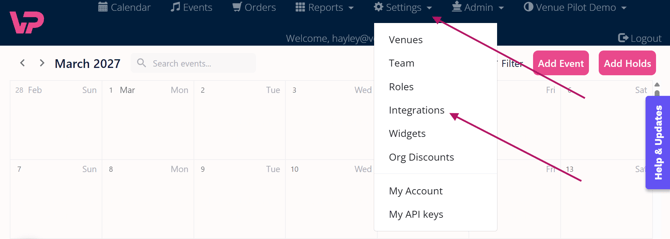
Navigate to Settings → Integrations.
-
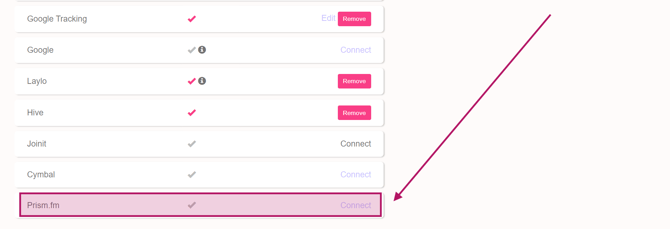
Locate Prism.fm in the list and click Connect.
-
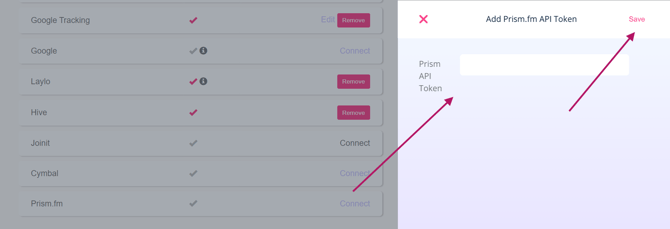
Enter your Prism API Token (this is provided to you by the Prism.fm team, or is retrievable in settings under "developers). You'll want to create an external ticketing token, and set it for a range of one year.
-
Click Save. A checkmark will appear next to the integration once the connection is successful.
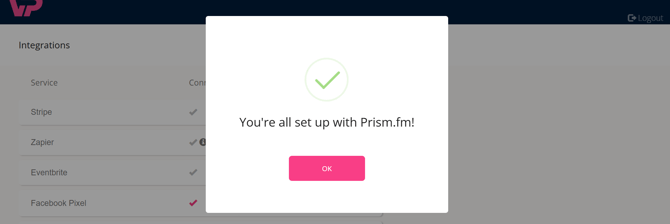
Note: To disconnect, click Remove on the Prism.fm row. This clears your API token and will disconnect any events.
How to Connect and Sync Individual Events
After the initial setup, you must manually link each VenuePilot event to its corresponding Prism.fm counterpart using a numeric ID.
-
Open the desired event in VenuePilot, and click the 'edit' button to open the event editor.

-
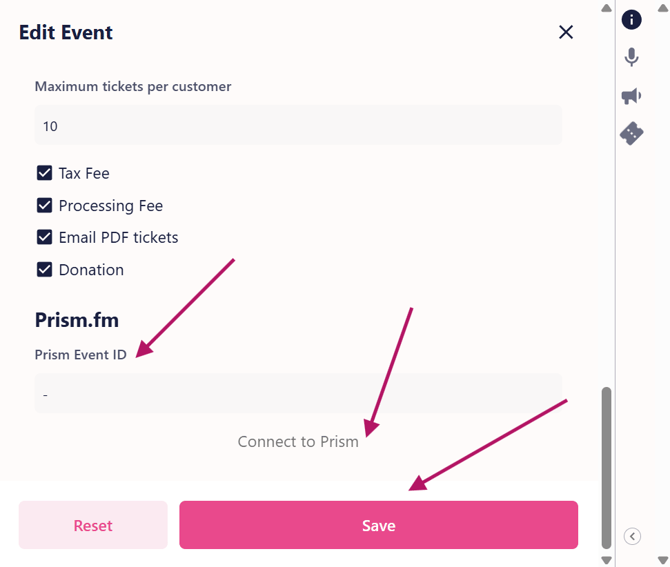
Scroll to the Prism.fm section at the bottom of the page.
-
Enter the Prism Event ID (the numeric ID found in your Prism.fm dashboard, in the URL).
- Click the address bar in Prism to copy the event ID from the URL, it’s between /event/ and /deals. The format of Prism URLs is https://app.prism.fm/event/EVENTID/deals.
- This must be done AFTER creating the event. You will see a success message pop up when you've successfully connected the integration.
-
Click Connect to Prism, the click Save.
What happens next?
VenuePilot will register all of the event’s ticket types with Prism and push an initial sales snapshot immediately.
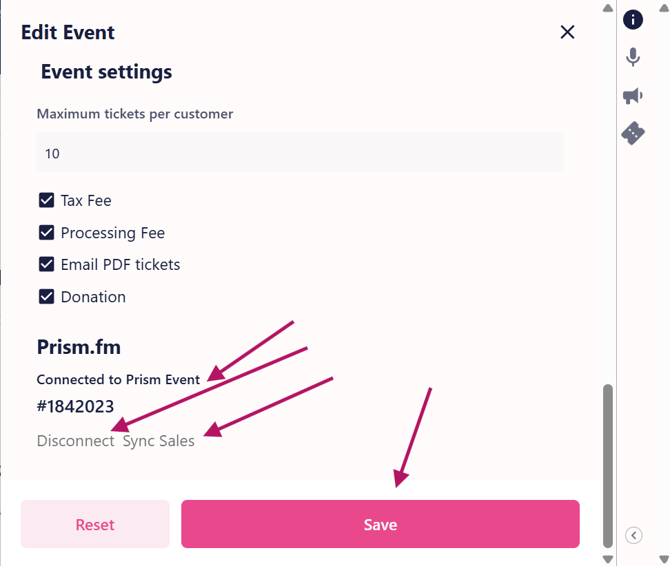
To Disconnect an Event: Click Disconnect in the Prism.fm section of the event editor. This removes the link for future updates but does not delete historical data already sent to Prism.
How The Sales Sync Works
VenuePilot ensures your data stays up to date through two primary methods:
-
Automatic Sync: Every time an order is completed, VenuePilot pushes a sales snapshot to Prism in the background. If a sync fails due to a connection issue, the system will automatically retry up to 3 times.
-
Manual Sync: If you have performed bulk imports, processed high-volume refunds, or simply want to ensure data parity, click Sync Sales in the event editor to trigger an immediate update.
Troubleshooting the Prism.fm Integration
If you encounter issues while syncing sales or connecting events, check the following common solutions:
Syncing & Data Issues
-
Sales Not Appearing in Prism: * Check if the event is officially "Connected" in the Admin app.
-
Ensure the ticket types in VenuePilot match your expectations in Prism.
-
-
Data Discrepancies: * If sales figures look outdated after a large batch of refunds or imports, use the Sync Sales button in the event editor to force an immediate update.
-
Automatic Retries Failed: * VenuePilot retries failed background syncs 3 times. If a persistent error occurs, it is usually due to a disconnected account-level API token.
Pro Tip: If you disconnect an event and reconnect it later using the same ID, VenuePilot will attempt to resync the entire sales history to ensure Prism is up to date.