
Memos help your team stay aligned on operational details without creating clutter or confusion in your booking workflow.
What is a Memo?
A Memo is a non-event calendar item designed to capture important day-to-day operational details. While your primary calendar handles shows and holds, Memos allow you to track everything else that keeps your venue running smoothly.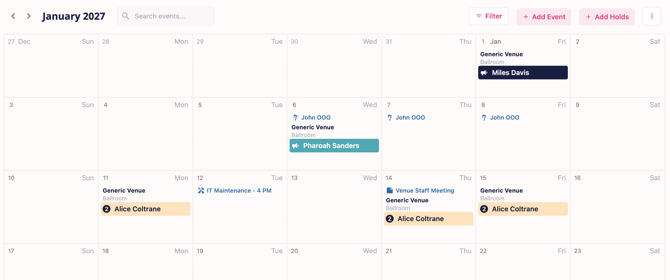
Use Memos to log:
- Deliveries: Equipment drop-offs, beverage shipments, or staging orders.
- Staff Availability: Vacations, out-of-office dates, or shift notes.
- Reminders: Maintenance schedules, ticket drop deadlines, or administrative tasks.
- General Notes: Any shared internal updates that require calendar visibility.
Memos were built to support the diverse ways venues manage their daily operations, ensuring all team members have visibility into non-show activity on a single shared view.
How to Create a Memo
You can quickly add a Memo to your calendar from both desktop and mobile devices.
On Desktop
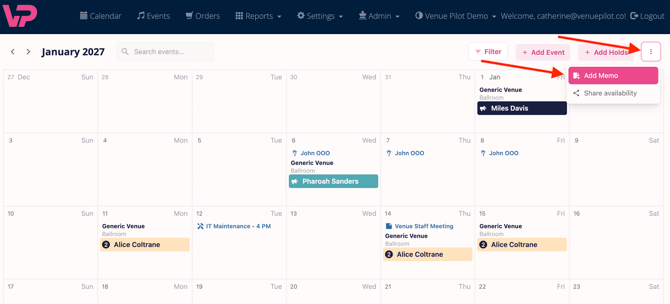
- Navigate to your Calendar.
- Click the kebab menu (three vertical dots) located directly to the right of the Add Holds button.
- Select Add Memo from the dropdown menu.
On Mobile
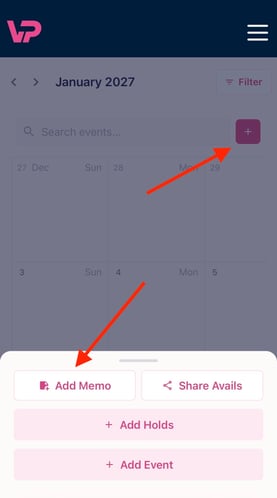
- Open the Venue Pilot mobile view.
- Tap the + (Plus) button on your screen.
- Tap Add Memo.
Configuring Your Memo Details
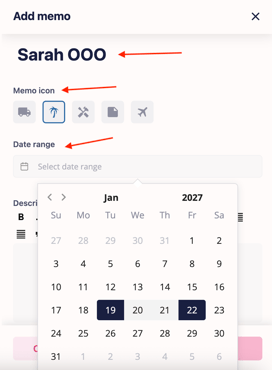
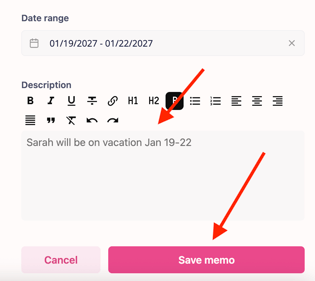
Once you select Add Memo, a pop-up modal will appear. Fill out the following fields:
- Title: Enter a short, clear description of the item (e.g., Soundboard Delivery or Sarah Out of Office).
- Icon: Choose a visual icon that best represents the type of memo being created.
- Date Range: Select the start and end dates.
- Note: For single-day items, select the same date for both the start and end date.
- Description: Add any additional notes, instructions, or relevant details your team might need.
- Save: Click Save to publish the Memo to your calendar.
Calendar Visibility & Permissions
Memos display directly on your shared calendar based on the permissions set for your team.
Note on Access: By default, any Admins can see Memos. If you cannot see Memos on your account, please ask your admin to change your role permissions to include Memos.
Questions? Reach out to us at clientsupport@venuepilot.com or hit us in the chat bubble in the bottom right hand corner.