-
Selling tickets on CashorTrade is easy, secure, and the only resale platform where selling is completely FREE to the seller!
-
You may ONLY sell tickets you have purchased and for which you have a valid purchase receipt.
-
Never list tickets for sale on multiple platforms to avoid overselling.
-
For a full list of requirements when listing tickets for sale, please review CashorTrade's Help Center Article: Ticket Listing Requirements
Follow the steps below to create a listing and connect with a buyer!
Need Help?
If you have any questions or need assistance, please contact CashorTrade's Fan Support team.
Create a listing to sell your tickets:
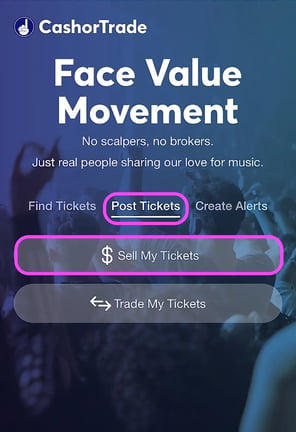
1. Click “Post Tickets” and then choose if you would like to Sell or Trade* your tickets.- Select “Sell My Tickets” if you would like to list your tickets for sale at Face Value or Below
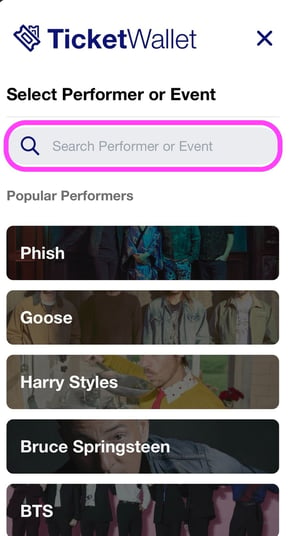
2. Search the artist, team, event, or festival name
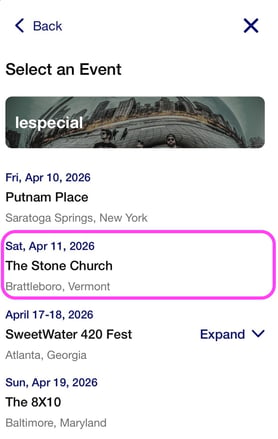
3. Select the event date for the tickets that you have
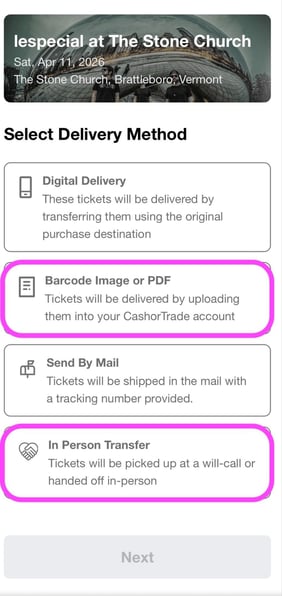
4. Select Delivery Method: This is how the tickets will be transferred to the buyer
- Upload your PDF Ticket Image
- In Person Transfer (Will Call)
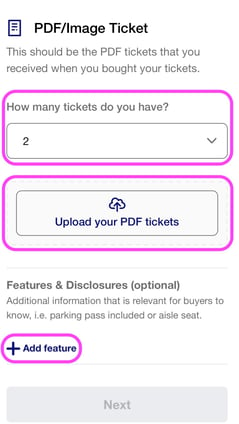
5. Enter the number of tickets that you are listing for sale and upload your PDF ticket(s)
- General Admission: Select the appropriate GA section for your tickets
- Floor
- Lawn
- Stands
- etc
- Reserved Seating: Enter the exact Section, Row, and Seat Numbers for the tickets you are listing for sale
- Aisle Seat
- Wheelchair Seat
- VIP Tickets
- Obstructed Vied
- Etc.
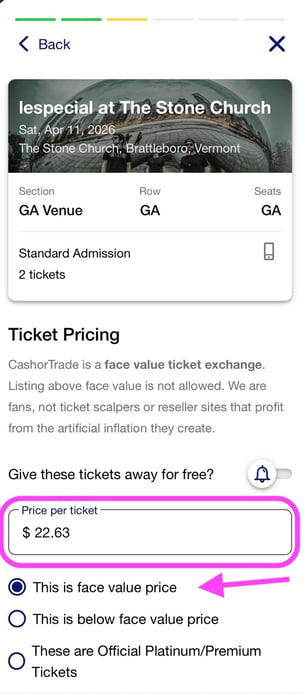
8. Enter the face value price per ticket.
- If you would like to give your tickets away for free (aka Miracle them), toggle "Give these tickets away for free?"
9. Select if the price is Face Value or Below Face Value.
10. Enter payment & payout information
- Add or select your credit/debit card (for verification).
- Add a PayPal account: this is where your payout will be sent after tickets are sold
- Adding a description is strongly encouraged to help share information with potential buyers and can really help your listing stand out!
- Add an image of your receipt so buyers can confirm the face value price
- It is required to upload an image of your receipt
- *Important Note: Cover any barcode or order numbers on any images you upload.
-
- EVERYONE: Public listing made to all CashorTrade users.
-
- Specific People/Person: Enter a buyer's username to send the listing directly to them. The perfect option for selling a ticket directly to a friend!
- Gold Members: Your listing will only be visible to CashorTrade Gold Members
- Friends: Coming Soon!
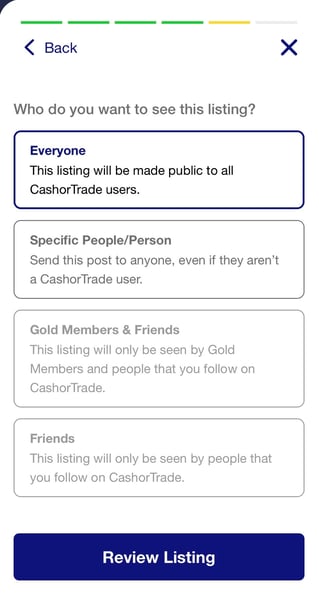
14. Click "Review Listing"
- Be sure that all information in your listing matches the tickets you have for sale exactly
- Note: If any information in the listing is not accurate, the buyer will be entitled to a full refund if their request is accepted
15. Click "Post Tickets" to make your listing live on the site, and you will be ready to receive buyer requests!
-
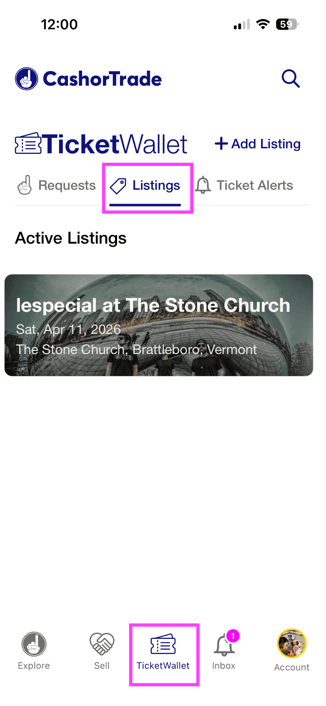
Once created, you can view your listing at any time from Ticket Wallet > My Listing